Check out our AI Agent.Learn more


Rules: Define What Success Looks Like
Rules teach rule1 what success looks like for your business. Define your criteria once, and every ad gets evaluated automatically.
Rules teach rule1 what success looks like for your business. Once you've connected your ad accounts, define your criteria once, and every ad gets evaluated automatically.
There are two types: Hit Rate Rules define what counts as a winning ad, while Keyword Tag Rules organize your ads into categories you can analyze. Both feed directly into the Hit Rate Breakdown on your Overview, where you can compare performance across any dimension.
Hit Rate Rules
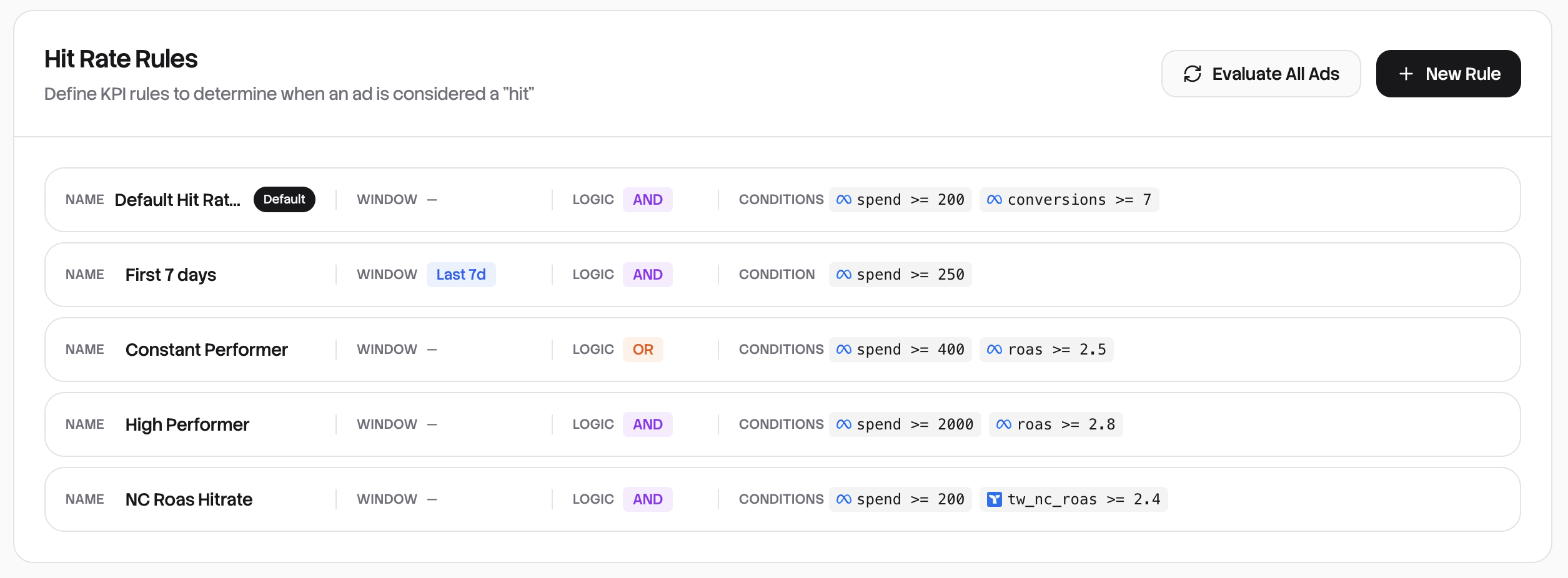
A Hit Rate Rule is your definition of a winning ad. Set your criteria once, and every ad gets evaluated automatically. Winners show up in green, underperformers in red.
Why this changes everything
Without a rule, you're staring at spreadsheets. With a rule, you immediately see that 68% of your ad spend is going to winners, or that your new agency is underperforming across the board. The Hit Rate Breakdown on your Overview shows performance by agency, product, campaign, or any category you've tagged.
Setting up your first rule
Click New Rule and give it a name like "ROAS Target" or "Profitable Ads." Then define what success means.
The simplest rule is a single condition: ROAS >= 2. That's it. Any ad with a 2x return or better is a hit. Not sure what ROAS target to aim for? Our ROAS Calculator can help you find the right number for your business.
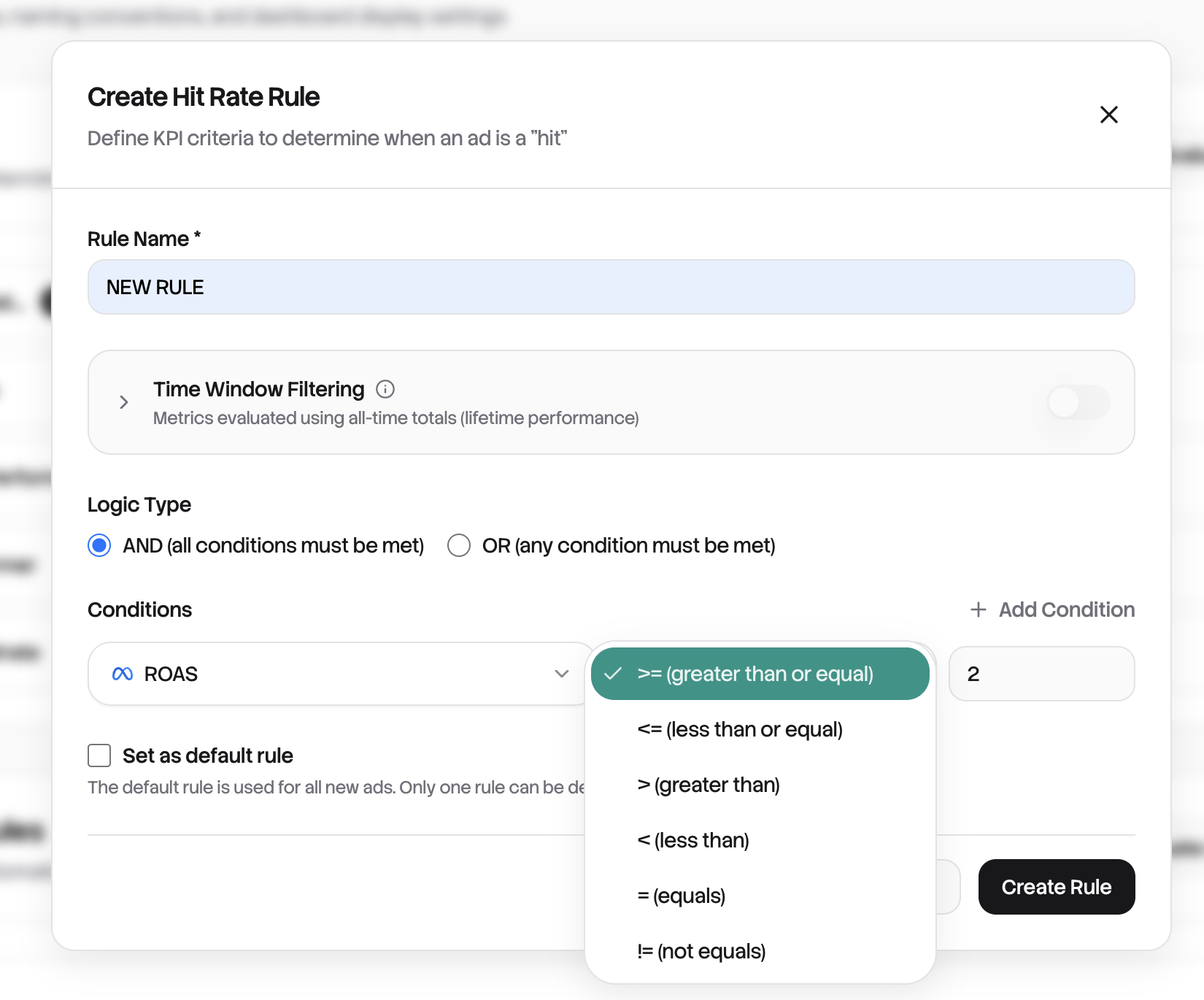
You can get more sophisticated by combining conditions. Want ads that are both profitable AND have meaningful spend? Set ROAS >= 2 AND Spend >= 100. Or maybe you have two paths to success, like high ROAS or high volume? Use ROAS >= 3 OR Conversions >= 50.
Here are some common rules our users create:
| Goal | Condition |
|---|---|
| Profitable ads | ROAS >= 2 |
| Minimum viable spend | Spend >= 100 |
| Efficient acquisition | CPA <= 25 |
| Strong hook rate | Hook Rate >= 30% |
| Established performers | ROAS >= 1.5 AND Days Active >= 7 |
To determine the minimum ROAS you need to stay profitable, try the Break-Even ROAS Calculator.
Time windows for fair comparisons
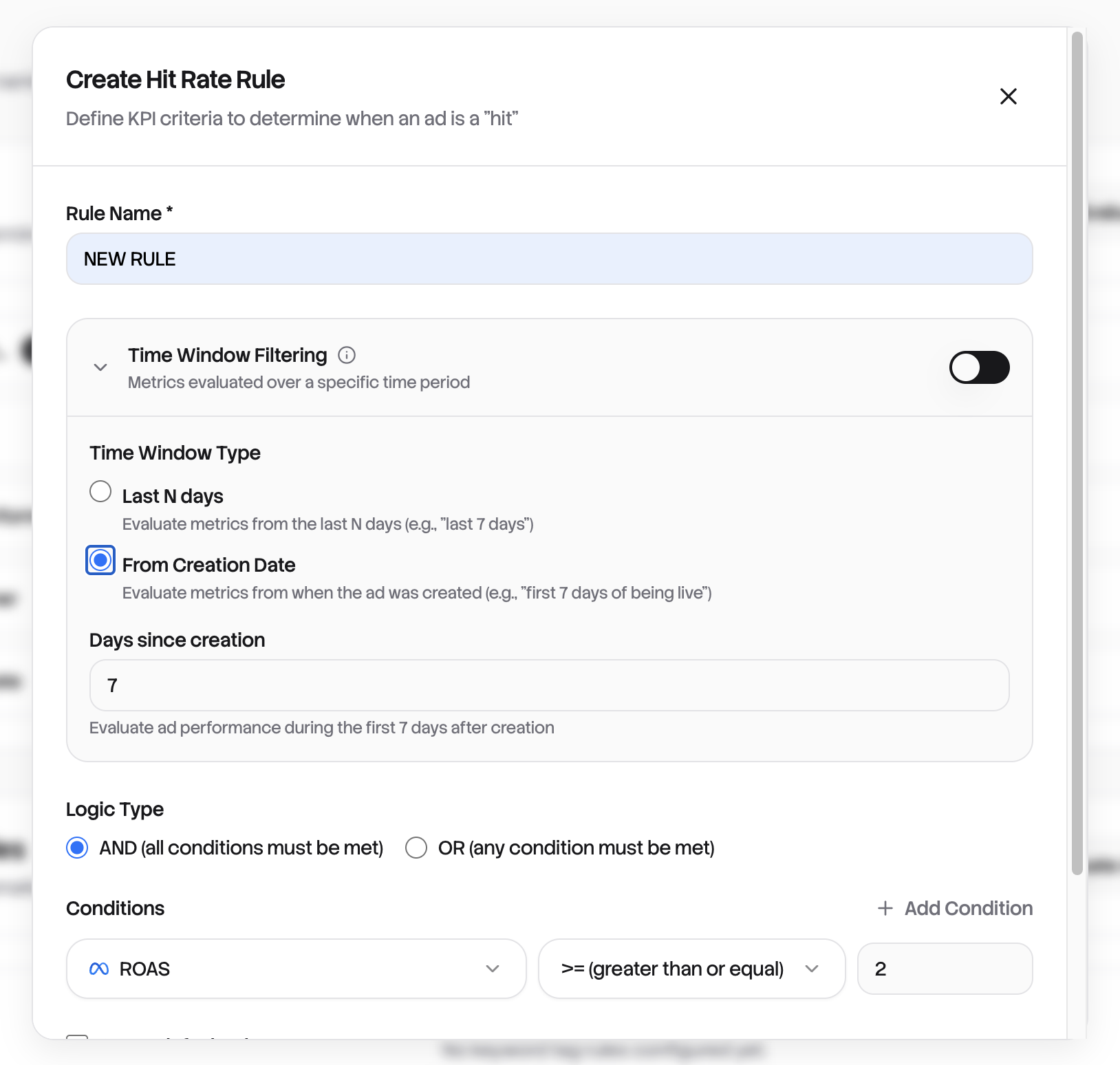
By default, rules look at lifetime metrics. But a 3-day-old ad hasn't had time to prove itself against a 30-day veteran.
Enable time window filtering to level the playing field. "First 7 days" evaluates every ad on its launch performance, perfect for creative testing. "Last 7 days" catches recent declines in previously strong ads, such as ad fatigue.
Managing multiple rules
You can create several rules for different contexts. A "Conservative" rule with strict criteria for budget decisions. An "Aggressive" rule with looser thresholds for your creative testing framework. Switch between them from the Rules Summary Bar on your Overview.
Only one rule can be the default at a time. That's the one powering your dashboard. Click the star icon on any rule to make it the new default.
Keyword Tag Rules
If you follow any naming convention for your ads (and most teams do), Keyword Tag Rules will save you hours of manual work.
How it works
Say your ads are named like Summer_ProductA_Video_V2 or Agency-X_Holiday_Static. A keyword tag rule detects patterns in these names and applies tags automatically.
| When ad name contains... | Tag applied |
|---|---|
| "Summer" | Season: Summer |
| "Agency-X" | Agency: Agency X |
| "TOF" | Funnel: Top of Funnel |
| "Video" or "_VID" | Format: Video |
Once tagged, you can filter your Ads table by any tag, see performance breakdowns by category, and track trends over time.
Creating a tag rule
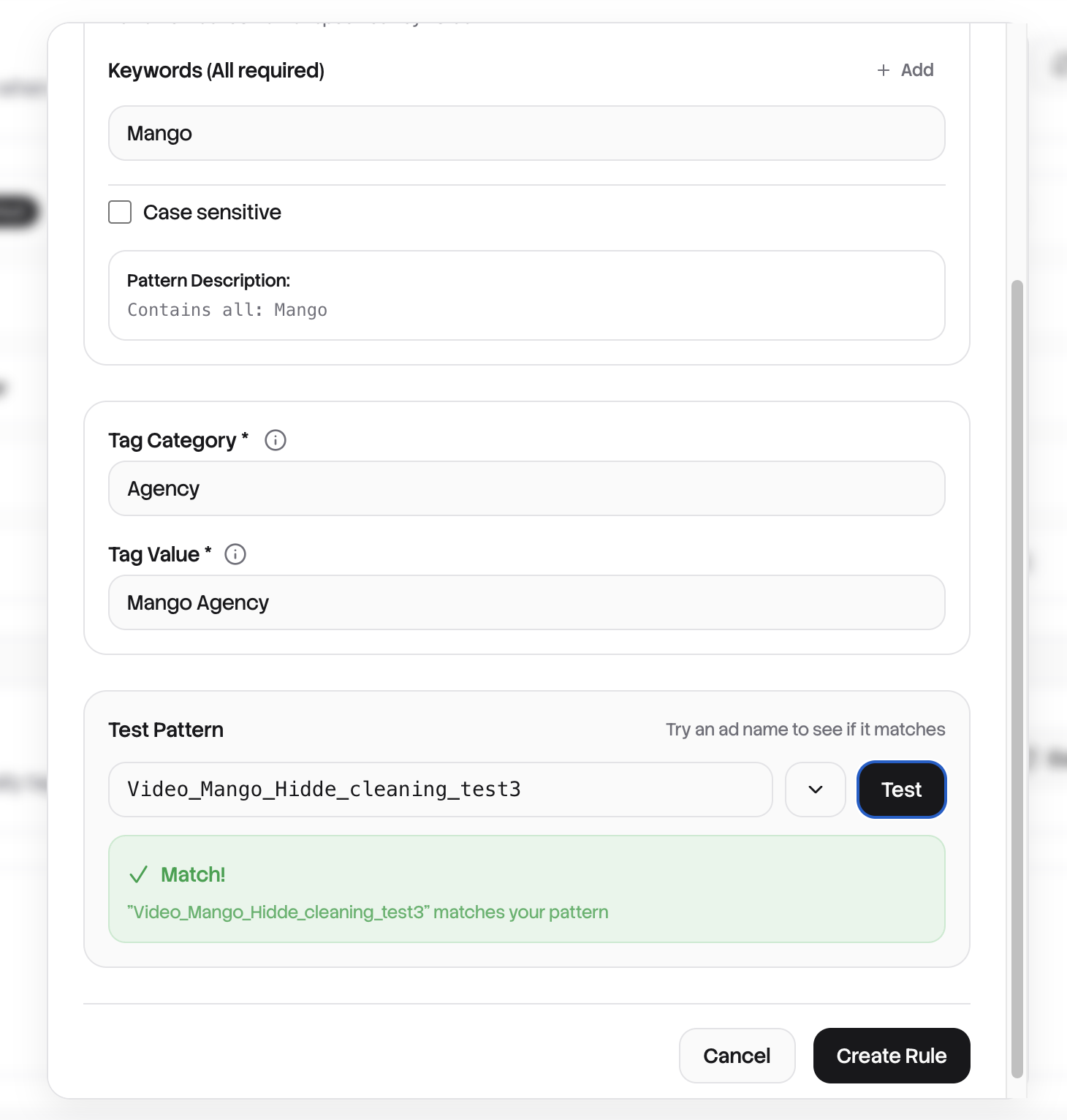
Click New Tag Rule and choose how to match:
Contains is the most common. The ad name just needs to include your keyword somewhere. Use "Contains All" when you need multiple keywords present (like "summer" AND "video"), or "Contains Any" to catch variations (like "summer" OR "SUM" OR "summer24").
Starts With and Ends With work great for structured naming conventions where position matters.
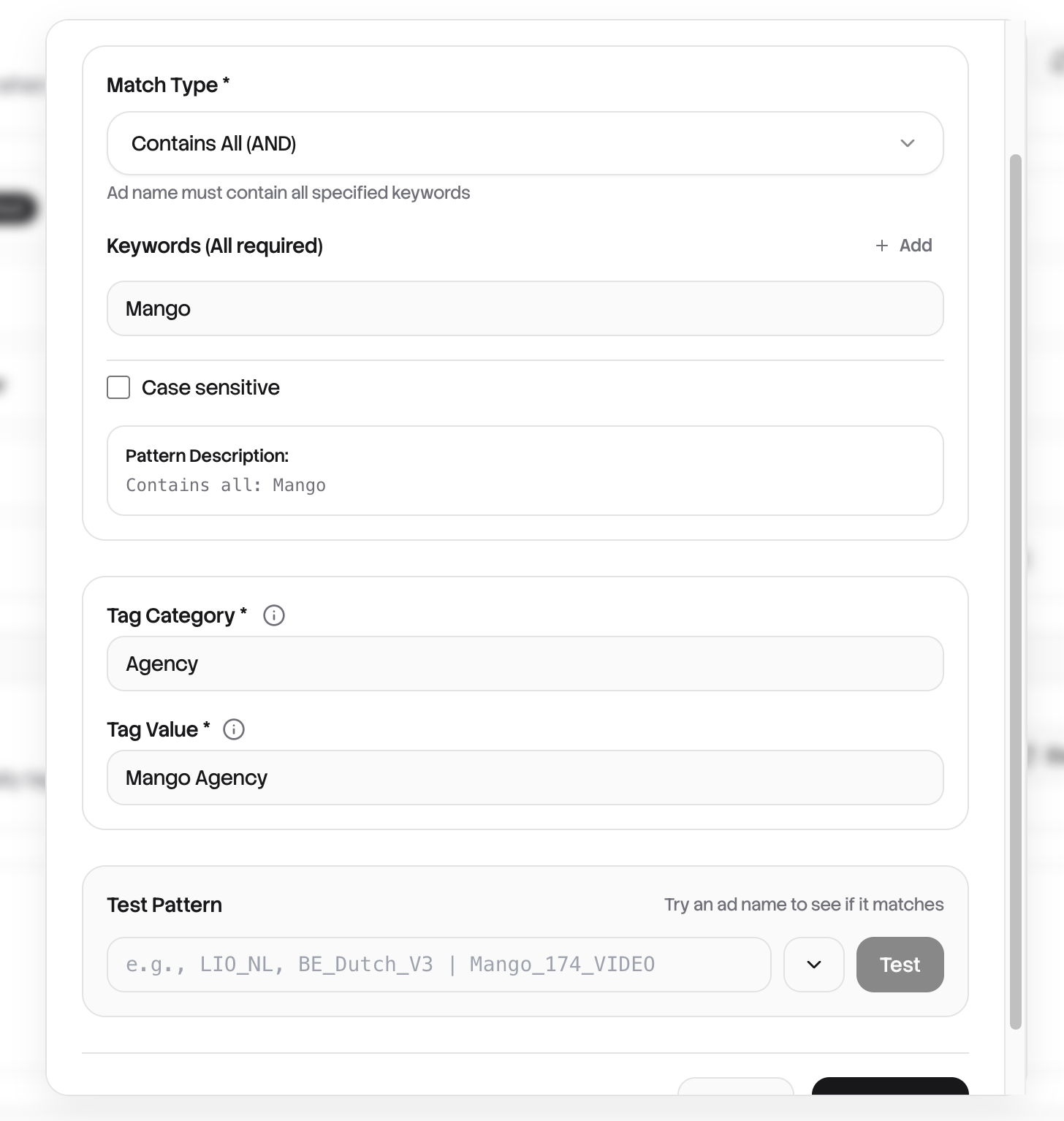
Next, define your tag. The Category groups related tags together (like "Agency" or "Product Line"), and the Value is the specific tag (like "Mango" or "Summer Sale"). Your rule automatically gets named "Category : Value."
Before saving, test your pattern. Enter a sample ad name or pick from your actual ads to see if it matches. You'll also see a live count of how many existing ads would be tagged.
Tips for effective tagging
Be specific with keywords. "Video" might match unintended ads like "VideoProductions_Agency." Using "Video" or "_VID" is safer.
Mirror your actual naming conventions. Look at how your team names ads today, then create rules that match those patterns.
Common categories that work well: Agency, Product Line, Funnel Stage (TOF/MOF/BOF), Creative Format, and Campaign Type.
Don't have perfect naming conventions? You're still covered.
Not every team has consistent ad names, and that's okay. rule1 uses proprietary AI models to automatically analyze every creative that syncs. The system detects what's in your ads (video vs. static, product shots vs. lifestyle, text overlays, and more) and tags them for you.
This means you can drill down into hit rates and compare creative performance even when your naming conventions are inconsistent or missing entirely. You don't need to fix years of messy ad names before getting started. Connect your accounts, and the AI handles the rest, giving you insights from day one.
Learn more about how this works in our AI Creative Tagging deep dive.
See it all come together on your Overview
Once your rules are configured, open your Overview dashboard. This is where everything clicks.
The Hit Rate Breakdown shows every tagged category side by side. Agency A vs. Agency B. Video vs. Static. Top of funnel vs. Bottom. Each card displays hit rate, spend, and whether performance is trending up or down compared to last period.
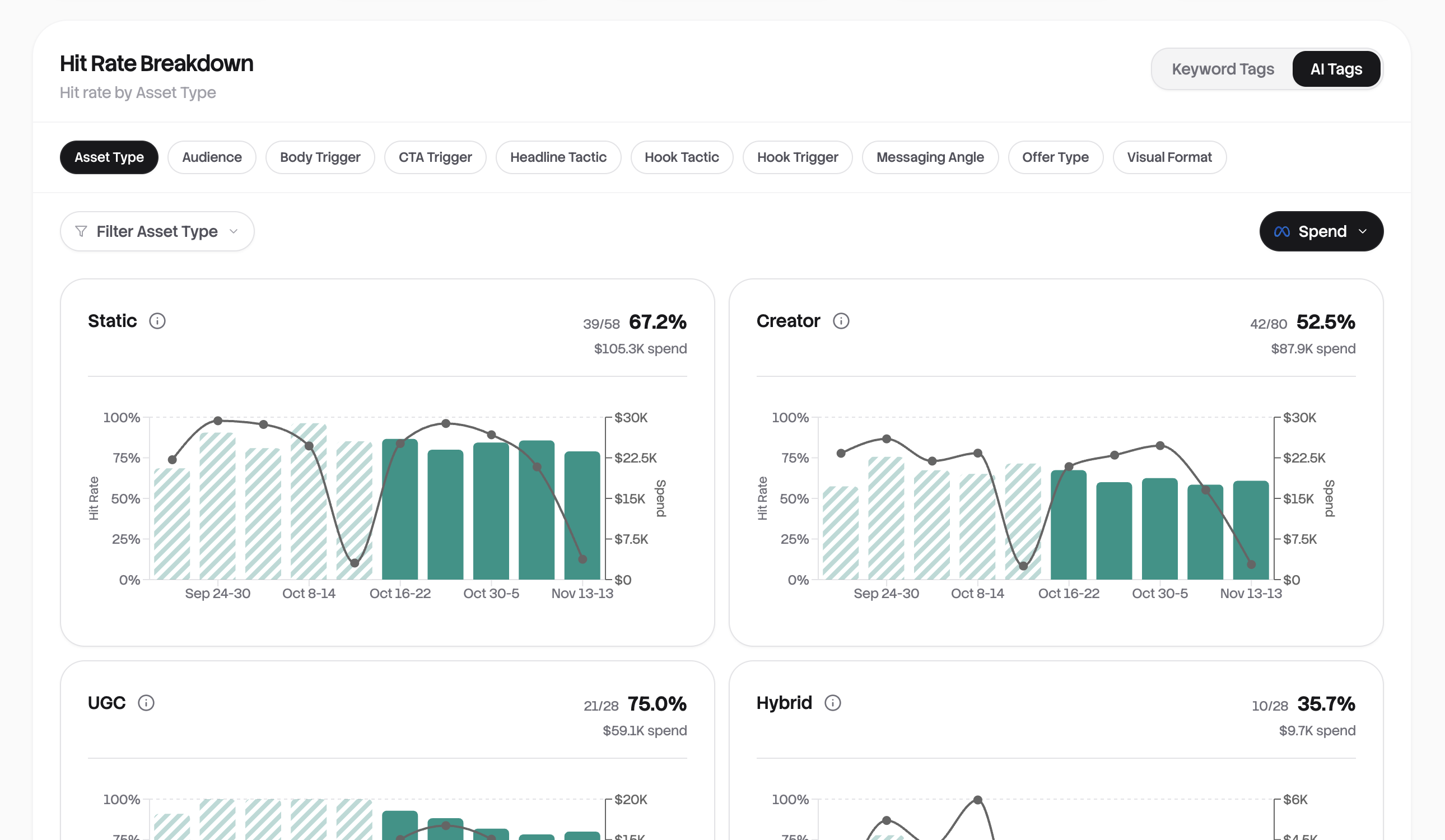
Toggle between Keyword Tags (the categories you defined) and AI Tags (automatically detected creative attributes) to slice your data different ways. Click any card to drill down into the individual ads in the Ads Table.
The questions you used to spend hours answering now take seconds. Which agency is actually delivering? Are video ads worth the production cost? Where should you shift budget tomorrow?
Configure your rules once. From that point forward, every ad that syncs gets evaluated and categorized automatically. Your Overview becomes the command center for understanding exactly where your ad spend is working.
Related resources
- ROAS vs ROI: What's the Difference? — Understand which metric to use when defining your success criteria
- ROAS Calculator — Calculate your return on ad spend before setting rule thresholds
Ready to get started?
See how rule1 can transform your ad analytics and help you find winners faster.